


Learn how to add branding to your corporate order here.
Online Orders:
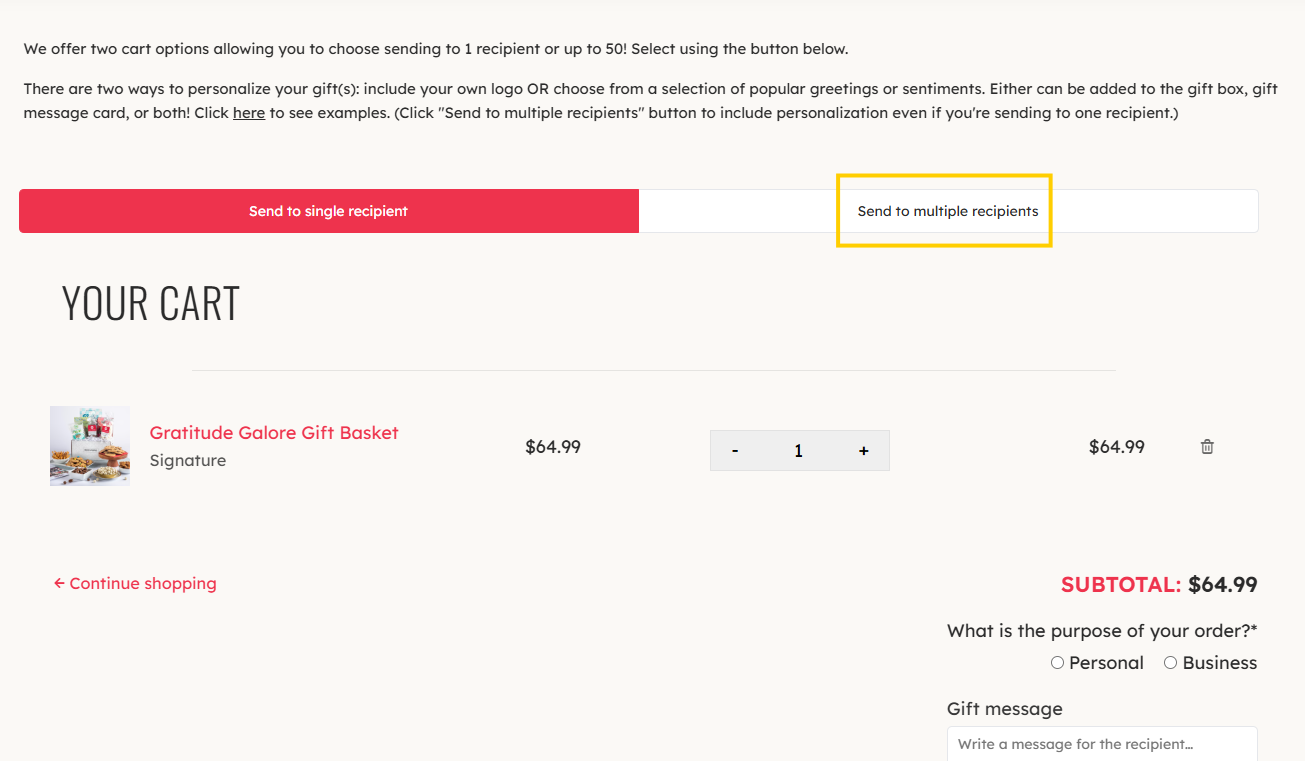
Once you have added your gift(s) to the cart, click on "Send to Multiple People". (Select this even if you are sending to just one recipient.)
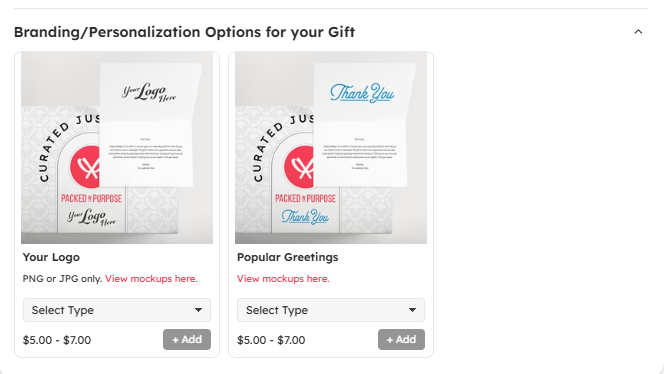
Scroll down and notice the two Branding/Personalization Options for Your Gift: Your Logo or Popular Greetings.
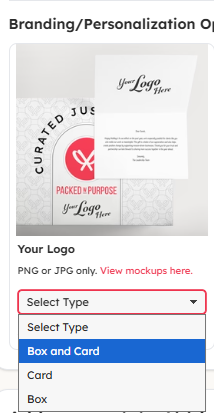
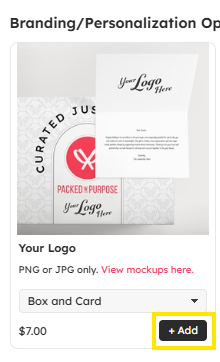
For Your Logo, select Box and Card; Card; or Box from the drop down. Then click "+Add".
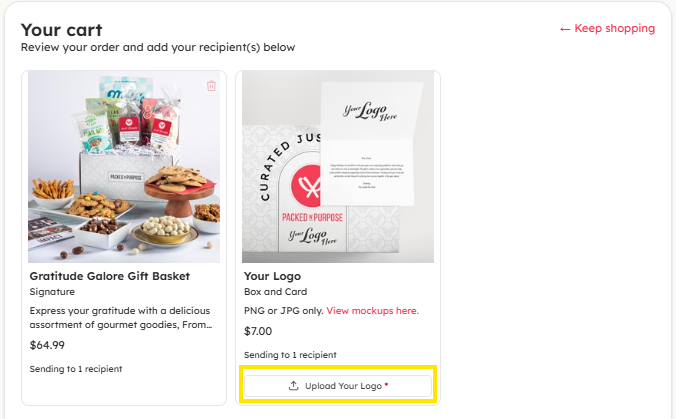
The product then moves to your cart. Notice the upload button with the text "Upload Your Logo". Click that button and upload your high resolution logo file from your computer. Acceptable file type is PNG. Uploading any other format could cause delays in your order. Please use images with at least 150 dpi. Check out Tips to Make Sure Your Logo Looks it's Best!
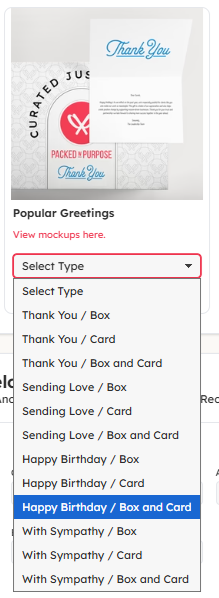
For Popular Greetings, select the sentiment and Box and Card; Card; or Box from the drop down. Then click "+Add". The product then moves to your cart.
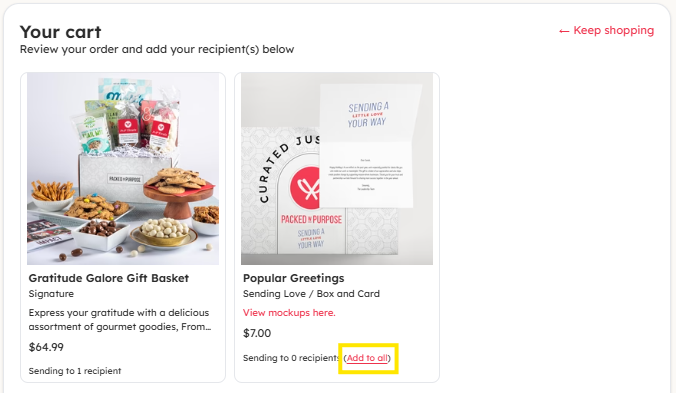
If adding Your Logo or Popular Greetings at the start of your order, it will automatically apply to your recipients. Scroll down and start adding their details. If you've already started entering your recipient info, then make sure to click the button "Add to All" so each of your recipients gift will include the personalization.
Note: At this time, we can only support orders with a custom logo OR popular greeting - not both.