


For Corporate or High-Volume Orders
Planning a larger gifting program? Download our Excel Corporate Order Form to submit your recipient list, or work directly with our Gift Concierge team who can help coordinate your order, answer questions, and manage the process from state to finish.
For Online Orders
Step 1: Browse our all our gift curations and add your choice(s) to the cart.
Step 2: In the cart, click "Send to multiple recipients."
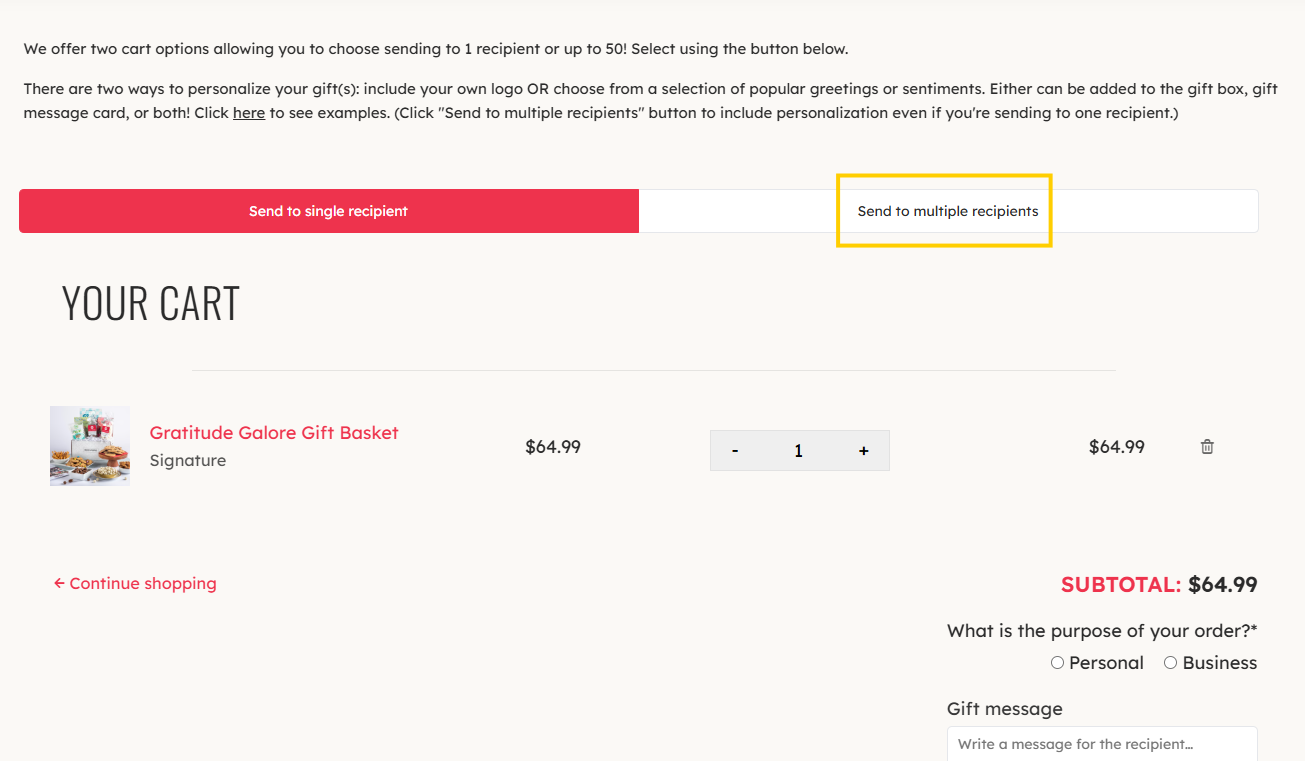
Step 3: Select a Personalization option, if desired. Here is more instruction on Adding a Logo to Your Gift Box and/or Message Card.
Step 4: Scroll down to the Your Recipient(s) section. Enter the recipients name in the Name field. Enter the Company, if applicable. In the Address field, start typing the shipping address, then select it from the dropdown.
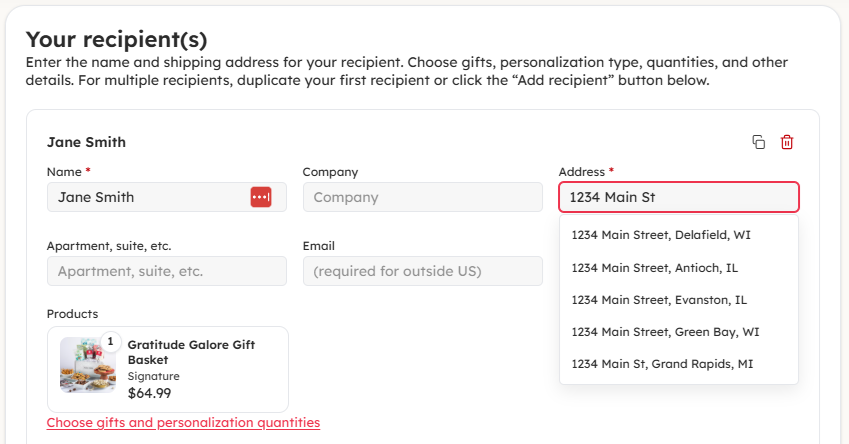
Don't forget to add the apartment or suite number, if applicable.
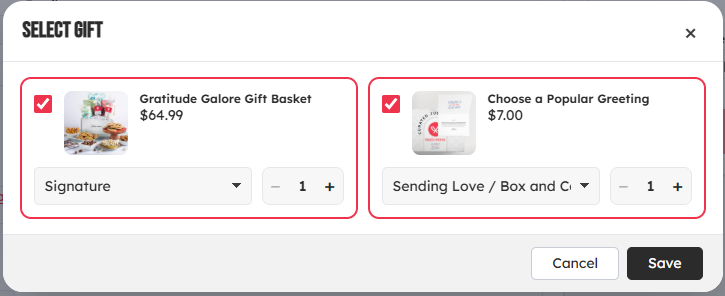
Step 5: Click "Choose gifts and personalization quantities", and adjust the gifts and quantities to this recipient in the pop-up, if needed. By default, all items in your cart will be assigned to your first recipient.
Step 6: Select a shipping date from the date picker. See note below! Select a shipping rate from drop down. See more details on shipping options here.
Step 7: Enter your personalized note to your recipient in the Gift Message field (max 800 characters). Don't forget to include who the gift is from!
Step 8: For your next recipient, either click "+ Add Recipient" or "Duplicate Recipient". If you click "+ Add Recipient" all fields will be blank for you to complete. If you click "Duplicate Recipient", the selections for Products, Shipping date, and Gift Message will be the same as your first recipient.
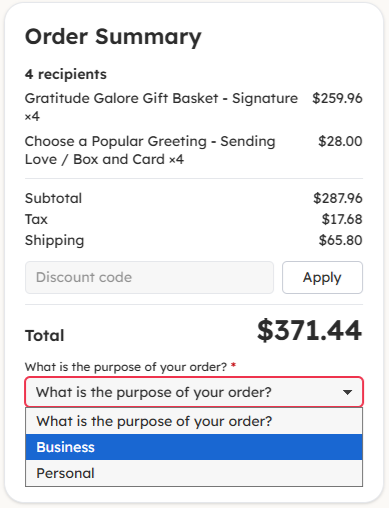
Step 9: Repeat until you've entered all your recipients. Then, select your answer from the drop down for the question: "What is the purpose of your order?". (This helps our team better understand your needs so we can improve our options for you!) Finally, click Checkout.
Important Note on Shipping Date: Your selected shipping date ensures your gift(s) are packaged and shipped on that date. This is not a delivery date. As we work with third-party shipping agencies, your delivery date is subject to the specific carrier selected as well as your shipping destination. Please find our estimated shipping transit times for all regions of the US here.
Please note! You'll receive an email confirmation (i.e. receipt) for your whole order, but shipping confirmation will be sent per shipping address. Our system will convert your multi-ship order into individual orders for each shipment. Do not worry! We have your order and will prepare it and ship according to the shipping date. For any questions please contact support@packedwithpurpose.gifts.
Troubleshooting Online Checkout
Are you getting an error and you're not sure why? We're here to help! Below are some answers to common questions or you can email us at support@packedwithpurpose.gifts
I can't click the Checkout button!
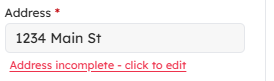
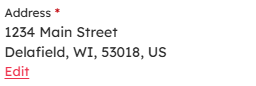
Look to make sure you've completed all required fields. First check the address to see if you're getting an incomplete error. Then check Name and Shipping date are selected.
Error Message: Please upload your custom logo at the top of the page
Scroll back up to your cart and be sure to upload your custom logo. More info on how to do that here.
Error Message: Please select the purpose of your order.
Right above the Checkout button, we ask a survey question about your order. This helps us better understand your gifting needs, so we can offer the best gifts and service to you.
Error Message: Invalid quantity for Add a Custom Logo - Box and Card. Quantity must match the quantity of the gifts to that recipient.
Check your recipients; the personalization (Add a Custom Logo or Choose a Popular Greeting) quantity must match the gift quantity per recipient. Update that quantity by clicking "Choose gifts and personalization quantities" on the recipient.